

Basic Guide: Combos Function Overview
1. Project management
1.1. Introduction to project management function page
On the home page, click "Projects" in the left sidebar to enter the project management page. On this page, users will see all created game project cards, and there is a... (more actions) button in the bottom right corner of each project card. Click this button to expand the project management menu, which supports the following actions:
- Rename
- Duplicate Project (Duplicate)
- Delete Item (Delete)
1.2. Project management shortcuts
In the project chat interface, click on the project name at the top to expand a convenient project management function area. Double-click on the project name at the top to rename the project without having to go to the project management page for settings.
2. Asset generation
2.1. Asset types that can be generated
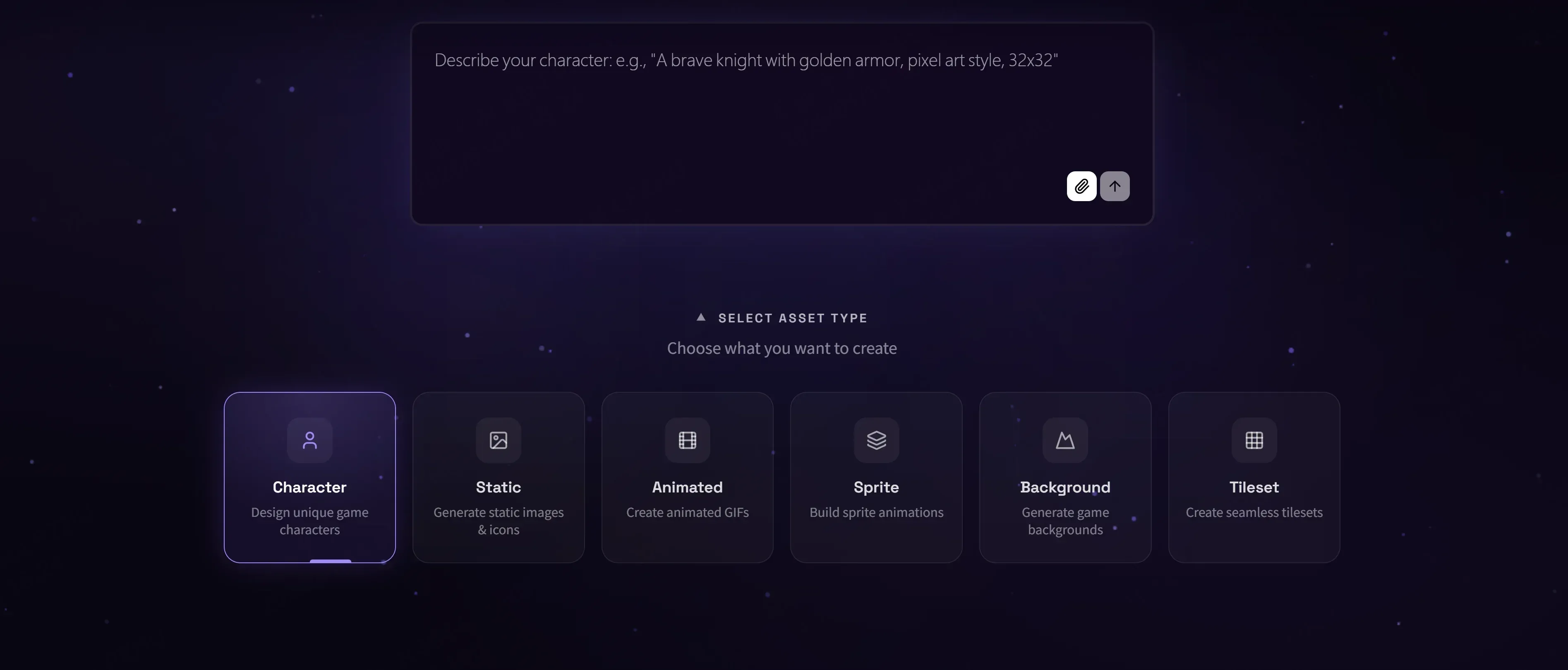
On the home page, click "Generator" in the left sidebar to enter the asset generation page. In the "Select Asset Type" area, click the resource category you need to generate, for example: Character, Static (still image), Animated (GIF animation), Sprite (frame-by-frame sprite animation), Background (background scene), Tileset (map tiles). Users can describe the required content in natural language in the input box, and can click the file upload button next to the input box to add images as visual references.
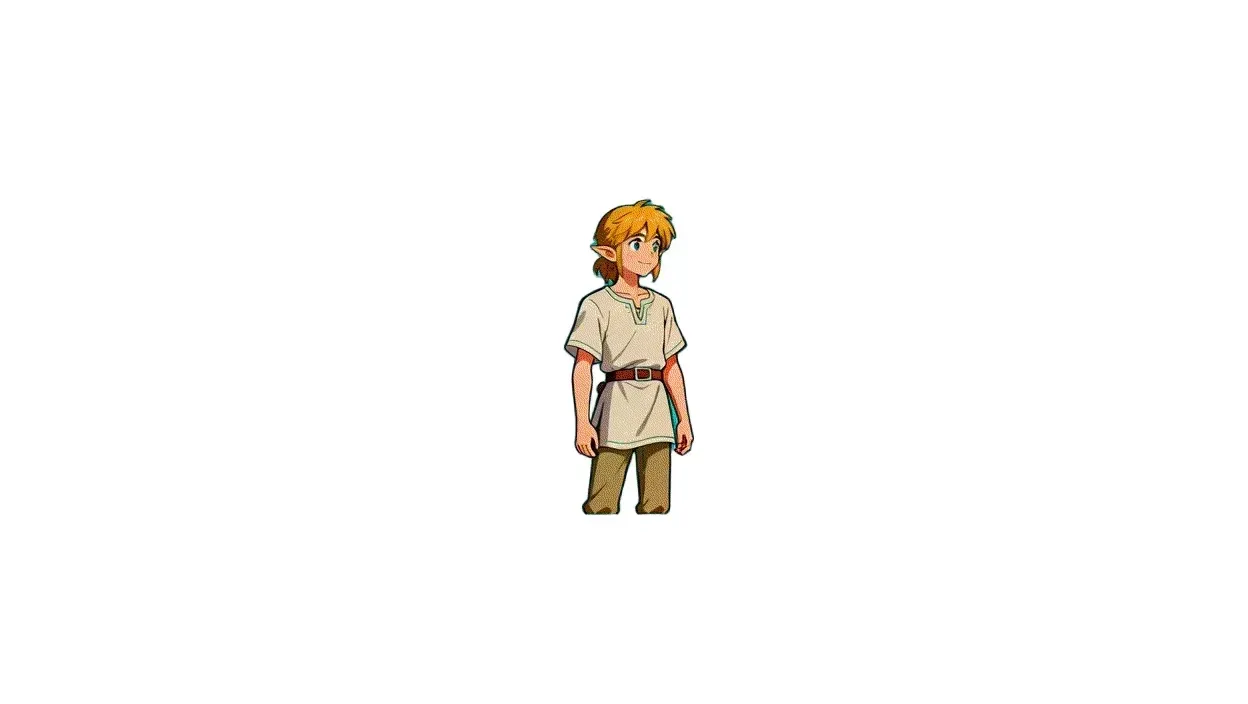
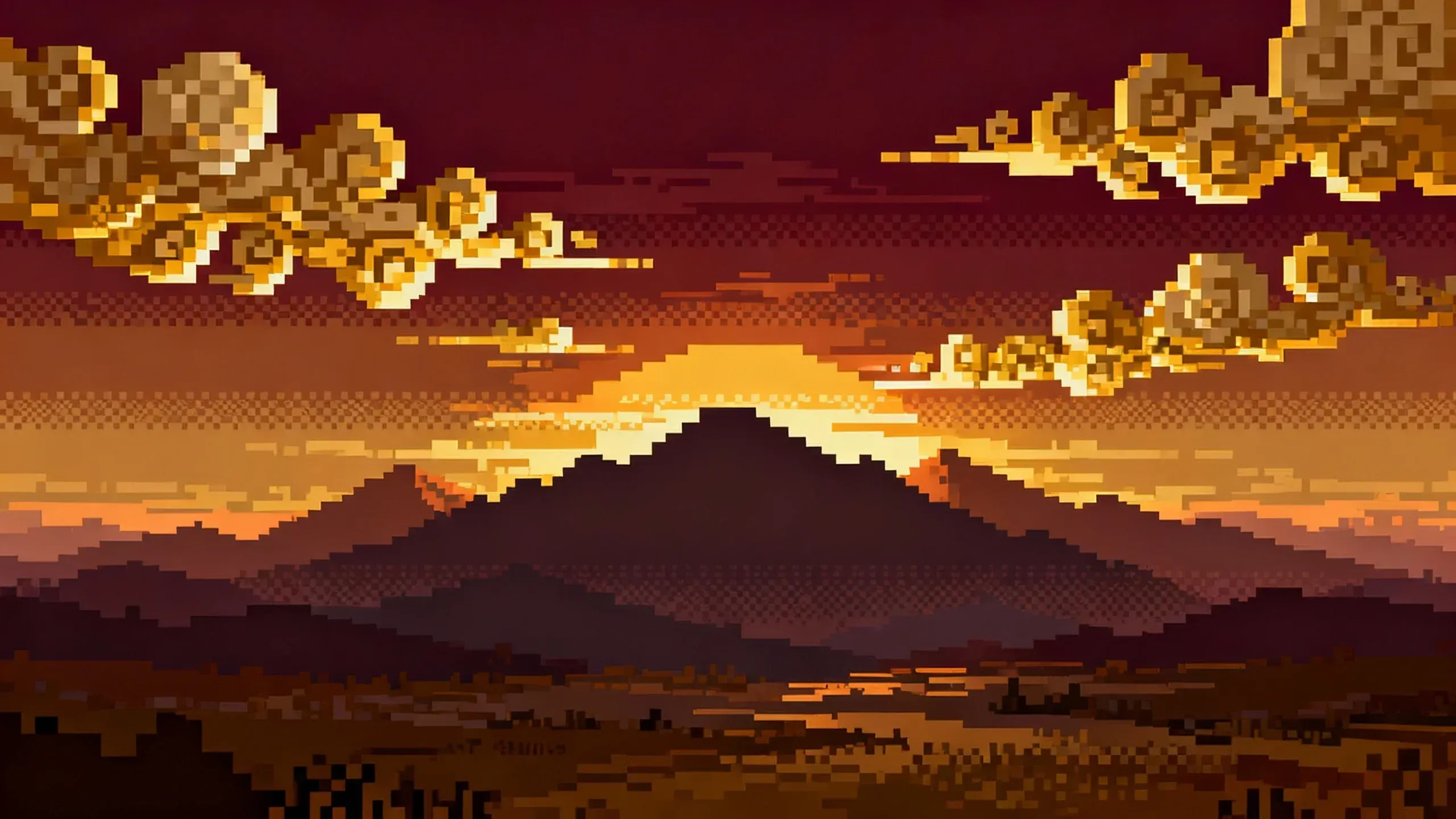
2.2. Asset generation and preservation
After clicking Generate, combos will display the most recently generated asset thumbnails in the generation results area. When the user hovers the mouse over any thumbnail, they can perform the following operations:
- Download Assets (Download)
- Permanently store the generated content in the asset library for easy retrieval in subsequent projects
3. Resource library management
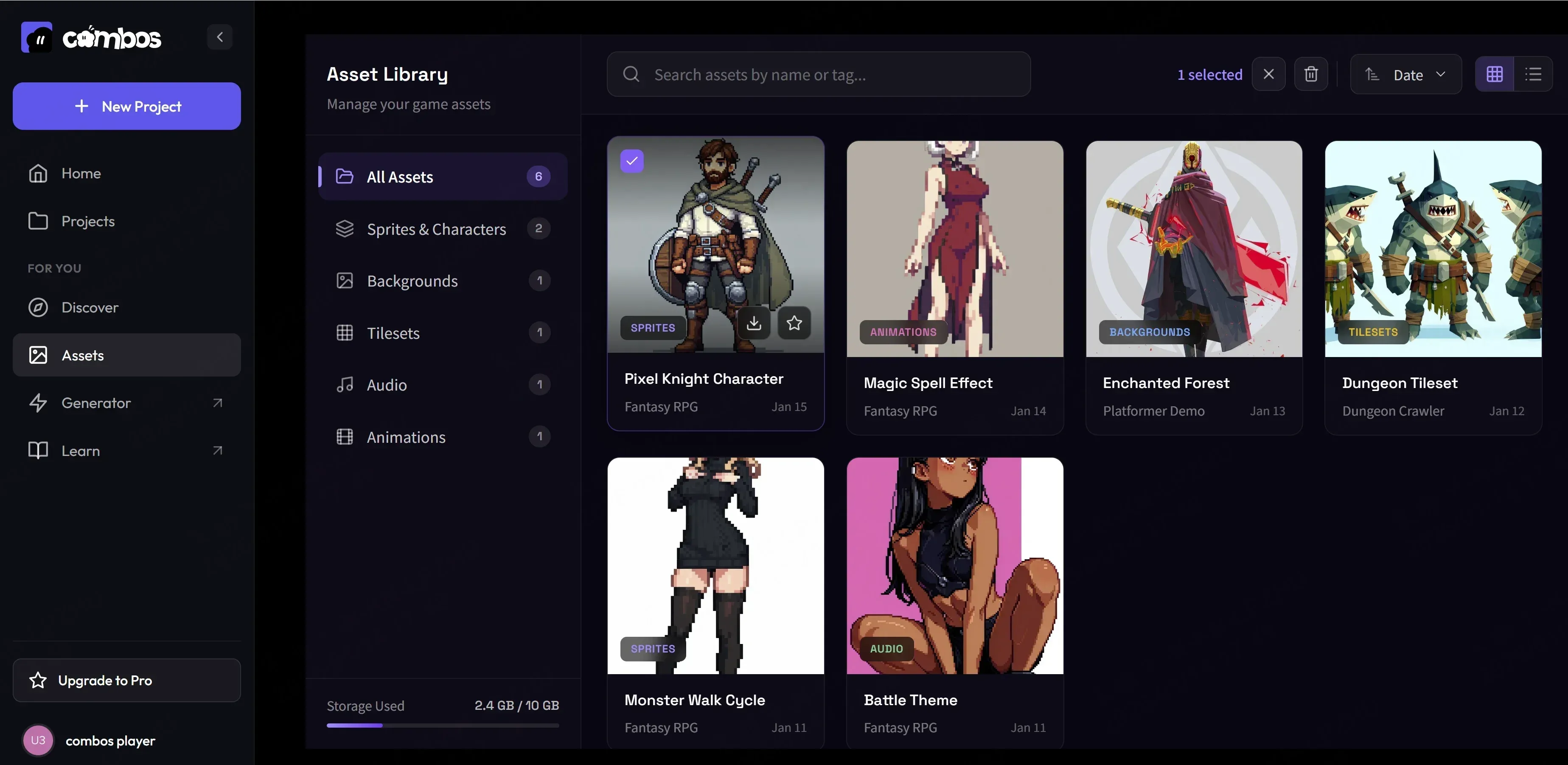
After logging in, users enter the home page, click on "Assets" in the left sidebar menu to enter the asset management page. On this page, users will see all assets, as well as asset cards categorized by type. Hovering the mouse over the thumbnail of any creative will reveal a quick action menu. After selection, it supports previewing the large image, downloading the creative, and deleting the creative.
3. Editor functionality
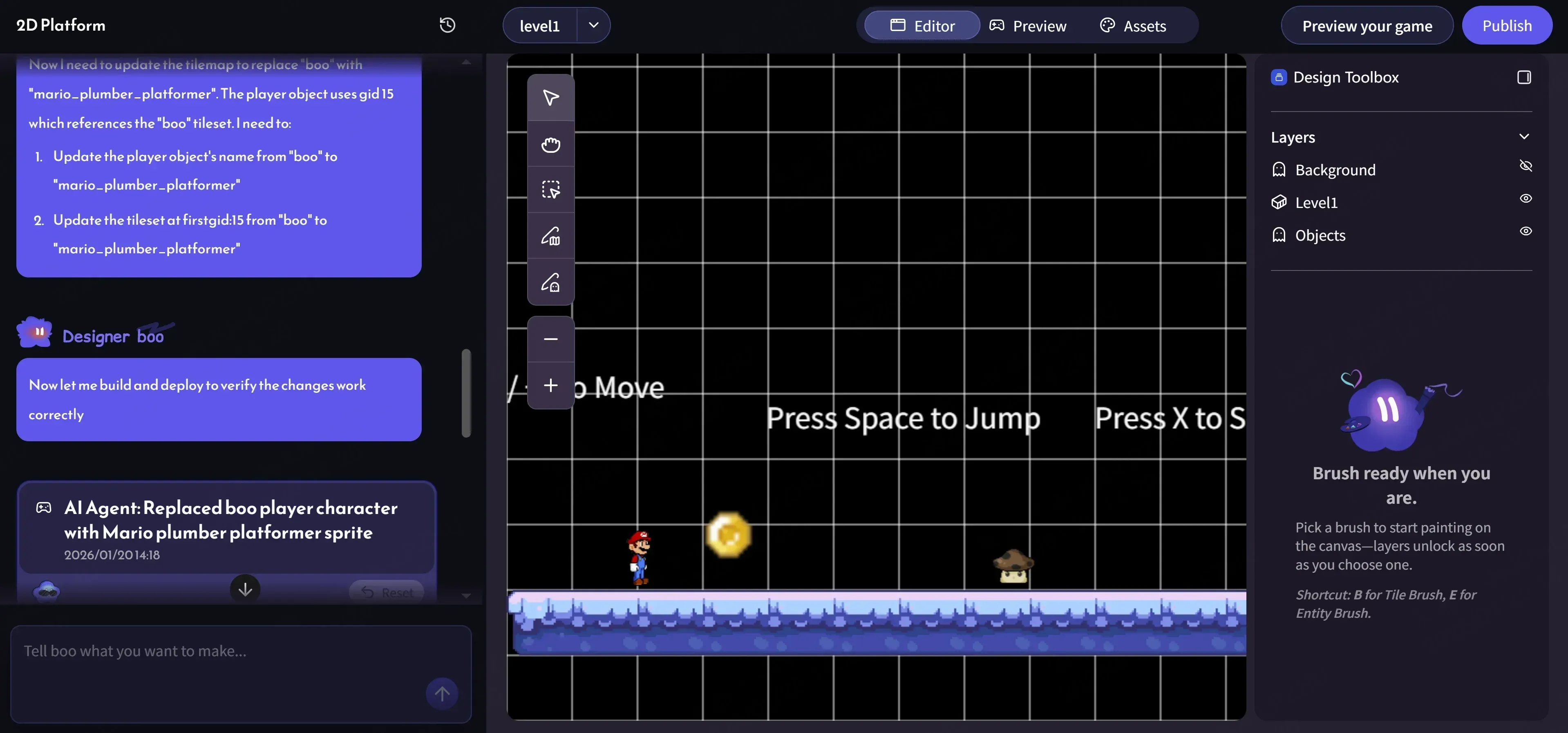
After users enter the project via the 2D Platform template, they can select "editor" through the top navigation to access the editor functionality. The central area is the level editing canvas, used for directly modifying level content, and all changes will be reflected in the current level in real time.
1. Level selection
The top of the editor provides a level selection dropdown menu, where users can switch between different levels for editing. Modifications to each level do not affect one another, supporting independent design and debugging.
2. Select tool
When the user clicks on cursor or frame creation in the left toolbar, they can click or use the selection box tool to select an area on the canvas, and the selected area can perform the following operations:
- Move or delete as a whole
- Add to chat: When the user clicks on the selected element and then clicks "add to chat", the element will be sent to the Chat panel, and the user can modify the selected content by describing it in natural language
3. Terrain editing
- Tile Brush
Users can select the desired terrain blocks in the Assets Library on the right, and after selection, they can directly draw or modify terrain on the canvas
- Eraser Tool
Used to delete placed terrain blocks
4. Entity editing
- Entity Brush
Users can use the Entity Brush to place or remove interactions on the canvas. All available entities can be found in the asset library on the right. Drag or click to place them into the level. Supported entity types include enemies, rewards, hazards, and interactive objects.
- Eraser Tool
Used to delete placed entity creatives