

Basic Guide: From Conversation to Generation Games
Overview of Pre-communication Function
Pre-communication refers to a requirement alignment between the user and the AI agent when the game project has been created but the game code has not yet been generated, with the goal of enabling the AI agent and the user to fully discusscreative directions such as game templates, core gameplay, thematic directions, and visual styles. After the user enters project creation from "build from scratch", combos usually provide multiple rounds of pre-communication. During the communication, Boo will generate options to assist the user in decision-makingbased on the user's different requirements and conversation status, while the user can also freely input natural language to supplement, modify, or completely restate the requirements.
1. Template Selection
1. Directly select a template
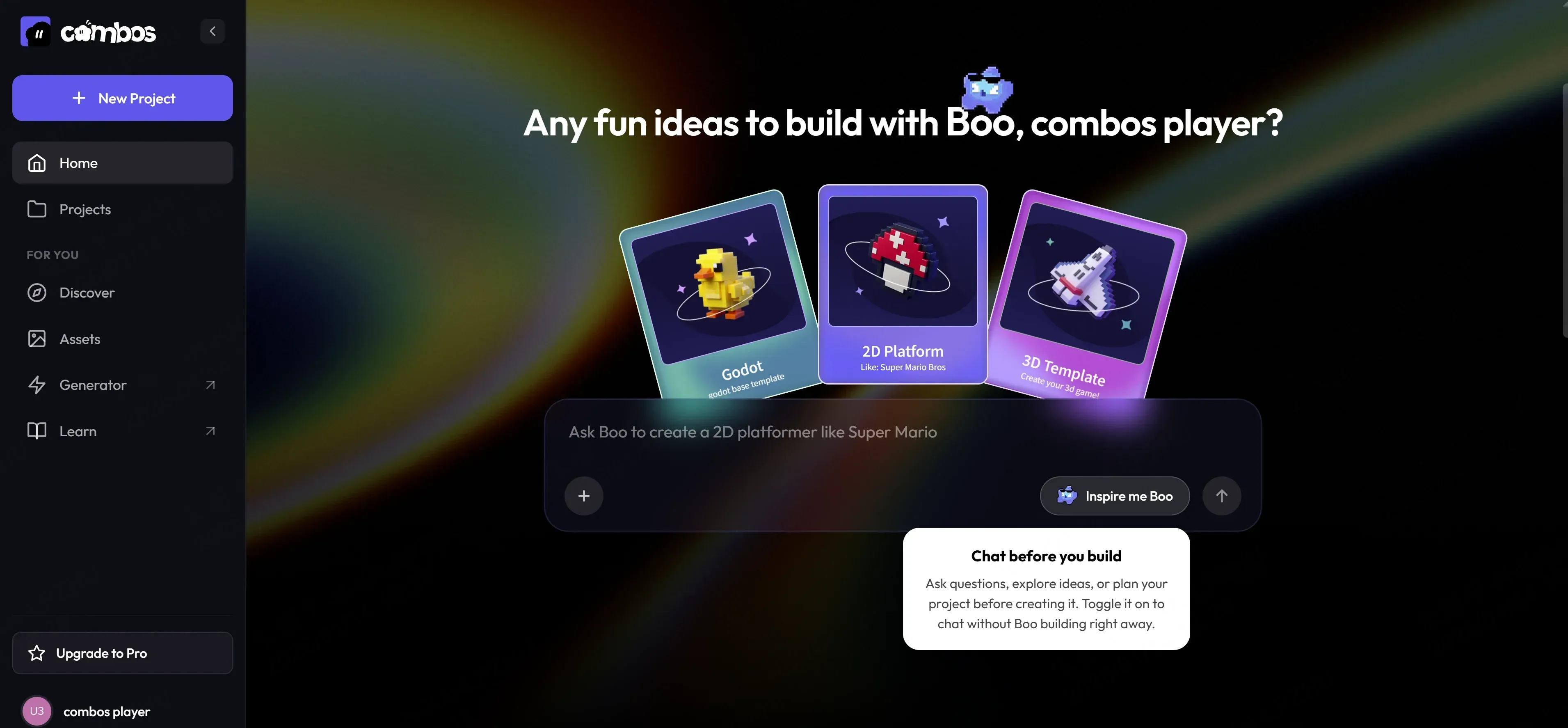
After users enter the main page of combos, they can see three game template options with built-in mature game mechanisms. Each template has been pre-configured with a core gameplay structure, which can be used to quickly generate and deploy game projects. After users hover their mouse over any template, two operation entries, "try it free" and "play sample", will be displayed.
-
Click “Try it free,” and Boo will create a new project based on this template.
-
Click to “Play sample” to experience how this template works.
After the user clicks "Try it free", the system will create a new game project based on the selected template. After the user enters a complete prompt, Boo will start building and deploying.
2. Build from scratch
When users enter the project from "build from scratch", the first round of pre-communication will revolve around template selection.
- When the user enters a complete and recognizable game play description, Boo will automatically parse the play features and determine the most suitable template type accordingly
- When the user fails to input complete game play description, or when the play description is insufficient for Boo to make an accurate judgment, Boo will pop up a template selection interface to guide the user through options.
2. Pre-communication under different user scenarios
- For users haven't come up with a game idea yet, in this scenario, users have not yet formed a clear game concept and hope to obtain inspiration through Boo's guidance
- Step 1. Confirm the theme direction. Boo will generate multiple reference game theme directions for users to choose from based on the template selected by the user. At this point, users can click to select one of the themes or input custom theme ideas to replace or supplement them.
- Step 2. Gameplay design confirmation. Boo will combine the confirmed template and the selected theme direction to generate multiple gameplay design options. Users will confirm the final gameplay direction through options or text input.
- Step 3. Visual style confirmation. Boo will provide art style options that match the theme and gameplay. Users can directly select the recommended style or enter a custom style description.
4. Introduction to the capabilities of the model
After the user selects a game template, Boo willoutput a solution that not only meets user expectations but can also be quickly developed and deployed. This capability is designed so that the generated result is not a conceptual demo but a runnable game.
- Supported theme directions: Cultural and humorous categories, such as workplace culture, consumerist culture, internet Meme culture, coffee and alcohol culture, technology/Silicon Valley culture, fitness and wellness culture, dating culture; classic game themes, such as fantasy adventure, space science fiction, post-apocalyptic survival, animal and nature, retro arcade style; abstract/puzzle categories, such as number games, color matching, shape combination, physics puzzles
- Supported core gameplay: If the user selects an existing template during the first stage of pre-communication, Boo can quickly complete development and deployment
- 2D Platform : Side-Scrolling Adventure, Puzzle Platformer, Action Game
- 3D Games: First-Person, Third-Person, 3D Puzzle
- galgame: romance simulation, plot selection, mystery reasoning
- Supported visual styles: pixel art, comic style, vector style, abstract minimalist style, sprite style
2. Asset generation in the game
Users can directly describe the game assets required for building a game to Boo in the chat panel, which is used to quickly verify the visual and style directions. After Boo generates the assets, it will automatically register the asset information in the game asset dashboard, facilitating subsequent calls during game generation.
-
background assets
Generate a background environment inspired by King's Landing in Game of Thrones. The scene should depict a dense city filled with stone buildings, narrow streets crisscrossing, and a magnificent castle towering above the city, overlooking the entire panorama. Adopt a realistic yet slightly stylized tone to convey an epic political atmosphere.
*.PlainGenerate a background environment inspired by King’s Landing from a Game of Thores. The scene should depict a dense city with stone buildings, narrow streets, and a grand castle overlooking the city. Use a realistic but slightly stylized tone to capture the epic and political atmosphere. Initiate the generation and deployment process immediately, and place the assets into the asset library for subsequent retrieval. -
2D creatives
I need to place the Mario character in the game. The game environment is flat terrain where the character can move.
*.PlainI require a Mario character to be placed within the game. The game environment consists of a flat terrain where the character can move about. Initiate the generation and deployment process immediately, and place the assets into the asset library for subsequent retrieval -
3D creatives
Generate a 3D voxel-style character similar to that in "Minecraft", using voxel-based design with simple cubes and pixel textures. The output size should be 1024×1024 pixels, including animation frames for idle, walking, and jumping states.
*.PlainGenerate a 3D voxel-style character resembling Minecraft, employing a voxel-based design using simple cubes and pixel textures. The output dimensions should be 1024×1024 pixels, incorporating animation frames for idle, walking, and jumping states. Initiate the generation and deployment process immediately, and place the assets into the asset library for subsequent retrieval
3. Game generation and deployment
Step 1. Game asset generation. In this step, Boo will generate various types of assets required for game operation based on the confirmed GDD. After deployment starts, the chat box will automatically pop up an asset generation progress card, at which point users can preview the generated game assets in the asset dashboard.
step2. After the game build is completed, the chat interface will automatically pop up a build completion prompt card to inform the user that the game has been successfully built. A subtitle will be generated based on the characteristics of this version to facilitate user identification. After the build is completed, the preview interface will be synchronously available. Users can click on "preview" button to preview and try out the game content.
After the deployment is completed, Boo will automatically generate 1 project cover based on the project content and style, and users can click "use this cover" to use it.
4. Game project cover management
The game project cover is used in scenarios where users browse and manage projects, helping users quickly and accurately identify different projects in the project list. This cover does not affect the game's content and gameplay, but only serves as a visual identifier for the project.
- After the project is completed and deployed, Boo will automatically generate 1 project cover based on the project content and style. If the user does not perform additional operations, combos will default to using this automatically generated cover.
- Meanwhile, users can input commands to customize the project cover, and Boo will generate 4 cover images with different styles or compositions at once based on the current project content. Users can select left or right through..., and after selecting any cover, click "Use This Cover" to confirm. The selected cover will take effect immediately and be displayed as the thumbnail of the project in the management list.
5. Post-deployment prompt fine-tuning and version iteration
After the game is built and deployed, users will enter the experience and iteration phase. This phase supports users in previewing and trying out the game, viewing game assets, and continuously optimizing by inputting prompts.
- After the game deployment is completed, Boo will default to previewing the currently deployed game version, and users can click to try it out. The preview function is used to verify the design effect of this version and does not affect the stability of the deployed version.
- After the user clicks the assets button, the preview interface will switch to the game asset dashboard, which is used to display all assets created during the current game generation process, including but not limited to characters, backgrounds, props, interactive elements, and visual components.
- If the user is not satisfied with the game experience or asset generation results, they can input a prompt at any stage, and Boo will adjust only the relevant parts according to the user's modification instructions while retaining the unmodified content. After fine-tuning is completed, the user can enter the preview again to verify the results.
6. Project version history management
In the chat interface, users can access the project version history management view via the Version History tab above the Chat panel. The currently used project version will display the Boo icon, marked as the current version
- Historical Version View: The system will display all archived versions of the project in reverse chronological order
- Version Reset: When the user clicks the reset button of any historical version, Boo will switch to the state of that version, including the game preview page and game assets. And the system will automatically save the current project as a new version before rolling back
7. Project publish function
After users complete all the deployment and debugging of the game, they can officially release the game and generate a shareable link.
- When the user clicks the Publish button in the upper right corner of the project editing interface, the system will process the release of the currently deployed game version. After the released game is screened by platform operations, it will enter an accessible and shareable state.
- After the release is completed, the system will generate a unique access link for the game. It should be noted that after the project is modified and updated, the sharing link will automatically overwrite the version before the update.
Users can access via this link:
- Directly access and play the game
- Share it with others for experience and feedback